Regular expressions are a powerful tool for examining and modifying text. Regular expressions themselves, with a general pattern notation almost like a mini programming language, allow you to describe and parse text. They enable you to search for patterns within a string, extracting matches flexibly and precisely. However, you should note that because regular expressions are more powerful, they are also slower than the more basic string functions. You should only use regular expressions if you have a particular need.
This tutorial gives a brief overview of basic regular expression syntax and then considers the functions that PHP provides for working with regular expressions.
PHP supports two different types of regular expressions: POSIX-extended and Perl-Compatible Regular Expressions (PCRE). The PCRE functions are more powerful than the POSIX ones, and faster too, so we will concentrate on them.
In a regular expression, most characters match only themselves. For instance, if you search for the regular expression "foo" in the string "John plays football," you get a match because "foo" occurs in that string. Some characters have special meanings in regular expressions. For instance, a dollar sign ($) is used to match strings that end with the given pattern. Similarly, a caret (^) character at the beginning of a regular expression indicates that it must match the beginning of the string. The characters that match themselves are called literals. The characters that have special meanings are called metacharacters.
The dot (.) metacharacter matches any single character except newline (\). So, the pattern h.t matches hat, hothit, hut, h7t, etc. The vertical pipe (|) metacharacter is used for alternatives in a regular expression. It behaves much like a logical OR operator and you should use it if you want to construct a pattern that matches more than one set of characters. For instance, the pattern Utah|Idaho|Nevada matches strings that contain "Utah" or "Idaho" or "Nevada". Parentheses give us a way to group sequences. For example, (Nant|b)ucket matches "Nantucket" or "bucket". Using parentheses to group together characters for alternation is called grouping.
If you want to match a literal metacharacter in a pattern, you have to escape it with a backslash.
To specify a set of acceptable characters in your pattern, you can either build a character class yourself or use a predefined one. A character class lets you represent a bunch of characters as a single item in a regular expression. You can build your own character class by enclosing the acceptable characters in square brackets. A character class matches any one of the characters in the class. For example a character class [abc] matches a, b or c. To define a range of characters, just put the first and last characters in, separated by hyphen. For example, to match all alphanumeric characters: [a-zA-Z0-9]. You can also create a negated character class, which matches any character that is not in the class. To create a negated character class, begin the character class with ^: [^0-9].
The metacharacters +, *, ?, and {} affect the number of times a pattern should be matched. + means "Match one or more of the preceding expression", * means "Match zero or more of the preceding expression", and ? means "Match zero or one of the preceding expression". Curly braces {} can be used differently. With a single integer, {n} means "match exactly n occurrences of the preceding expression", with one integer and a comma, {n,} means "match n or more occurrences of the preceding expression", and with two comma-separated integers {n,m} means "match the previous character if it occurs at least n times, but no more than m times".
Now, have a look at the examples:
Perl-Compatible Regular Expressions emulate the Perl syntax for patterns, which means that each pattern must be enclosed in a pair of delimiters. Usually, the slash (/) character is used. For instance, /pattern/.
The PCRE functions can be divided in several classes: matching, replacing, splitting and filtering.
The preg_match() function performs Perl-style pattern matching on a string. preg_match() takes two basic and three optional parameters. These parameters are, in order, a regular expression string, a source string, an array variable which stores matches, a flag argument and an offset parameter that can be used to specify the alternate place from which to start the search:
preg_match ( pattern, subject [, matches [, flags [, offset]]])
The preg_match() function returns 1 if a match is found and 0 otherwise. Let's search the string "Hello World!" for the letters "ll":
<?php
if (preg_match("/ell/", "Hello World!", $matches)) { echo "Match was found <br />"; echo $matches[0]; } ?>
The letters "ll" exist in "Hello", so preg_match() returns 1 and the first element of the $matches variable is filled with the string that matched the pattern. The regular expression in the next example is looking for the letters "ell", but looking for them with following characters:
<?php
if (preg_match("/ll.*/", "The History of Halloween", $matches)) { echo "Match was found <br />"; echo $matches[0]; } ?>
Now let's consider more complicated example. The most popular use of regular expressions is validation. The example below checks if the password is "strong", i.e. the password must be at least 8 characters and must contain at least one lower case letter, one upper case letter and one digit:
<?php
$password = "Fyfjk34sdfjfsjq7"; if (preg_match("/^.*(?=.{8,})(?=.*\d)(?=.*[a-z])(?=.*[A-Z]).*$/", $password)) { echo "Your passwords is strong."; } else { echo "Your password is weak."; } ?>
The ^ and $ are looking for something at the start and the end of the string. The ".*" combination is used at both the start and the end. As mentioned above, the .(dot) metacharacter means any alphanumeric character, and * metacharacter means "zero or more". Between are groupings in parentheses. The "?=" combination means "the next text must be like this". This construct doesn't capture the text. In this example, instead of specifying the order that things should appear, it's saying that it must appear but we're not worried about the order.
The first grouping is (?=.*{8,}). This checks if there are at least 8 characters in the string. The next grouping (?=.*[0-9]) means "any alphanumeric character can happen zero or more times, then any digit can happen". So this checks if there is at least one number in the string. But since the string isn't captured, that one digit can appear anywhere in the string. The next groupings (?=.*[a-z]) and (?=.*[A-Z]) are looking for the lower case and upper case letter accordingly anywhere in the string.
Finally, we will consider regular expression that validates an email address:
<?php
$email = firstname.lastname@aaa.bbb.com; $regexp = "/^[^0-9][A-z0-9_]+([.][A-z0-9_]+)*[@][A-z0-9_]+([.][A-z0-9_]+)*[.][A-z]{2,4}$/"; if (preg_match($regexp, $email)) { echo "Email address is valid."; } else { echo "Email address is <u>not</u> valid."; } ?>
This regular expression checks for the number at the beginning and also checks for multiple periods in the user name and domain name in the email address. Let's try to investigate this regular expression yourself.
For the speed reasons, the preg_match() function matches only the first pattern it finds in a string. This means it is very quick to check whether a pattern exists in a string. An alternative function, preg_match_all(), matches a pattern against a string as many times as the pattern allows, and returns the number of times it matched.
In the above examples, we have searched for patterns in a string, leaving the search string untouched. Thepreg_replace() function looks for substrings that match a pattern and then replaces them with new text.preg_replace() takes three basic parameters and an additional one. These parameters are, in order, a regular expression, the text with which to replace a found pattern, the string to modify, and the last optional argument which specifies how many matches will be replaced.
preg_replace( pattern, replacement, subject [, limit ])
The function returns the changed string if a match was found or an unchanged copy of the original string otherwise. In the following example we search for the copyright phrase and replace the year with the current.
<?php
echo preg_replace("/([Cc]opyright) 200(3|4|5|6)/", "$1 2007", "Copyright 2005"); ?>
In the above example we use back references in the replacement string. Back references make it possible for you to use part of a matched pattern in the replacement string. To use this feature, you should use parentheses to wrap any elements of your regular expression that you might want to use. You can refer to the text matched by subpattern with a dollar sign ($) and the number of the subpattern. For instance, if you are using subpatterns, $0 is set to the whole match, then $1, $2, and so on are set to the individual matches for each subpattern.
In the following example we will change the date format from "yyyy-mm-dd" to "mm/dd/yyy":
<?php
echo preg_replace("/(\d+)-(\d+)-(\d+)/", "$2/$3/$1", "2007-01-25"); ?>
We also can pass an array of strings as subject to make the substitution on all of them. To perform multiple substitutions on the same string or array of strings with one call to preg_replace(), we should pass arrays of patterns and replacements. Have a look at the example:
<?php
$search = array ( "/(\w{6}\s\(w{2})\s(\w+)/e", "/(\d{4})-(\d{2})-(\d{2})\s(\d{2}:\d{2}:\d{2})/"); $replace = array ('"$1 ".strtoupper("$2")', "$3/$2/$1 $4"); $string = "Posted by John | 2007-02-15 02:43:41"; echo preg_replace($search, $replace, $string);?>
In the above example we use the other interesting functionality - you can say to PHP that the match text should be executed as PHP code once the replacement has taken place. Since we have appended an "e" to the end of the regular expression, PHP will execute the replacement it makes. That is, it will take strtoupper(name) and replace it with the result of the strtoupper() function, which is NAME.
PHP's preg_split() function enables you to break a string apart basing on something more complicated than a literal sequence of characters. When it's necessary to split a string with a dynamic expression rather than a fixed one, this function comes to the rescue. The basic idea is the same as preg_match_all() except that, instead of returning matched pieces of the subject string, it returns an array of pieces that didn't match the specified pattern. The following example uses a regular expression to split the string by any number of commas or space characters:
<?php
$keywords = preg_split("/[\s,]+/", "php, regular expressions"); print_r( $keywords ); ?>
Another useful PHP function is the preg_grep() function which returns those elements of an array that match a given pattern. This function traverses the input array, testing all elements against the supplied pattern. If a match is found, the matching element is returned as part of the array containing all matches. The following example searches through an array and all the names starting with letters A-J:
<?php
$names = array('Andrew','John','Peter','Nastin','Bill'); $output = preg_grep('/^[a-m]/i', $names); print_r( $output ); ?> |
Monday, 6 May 2013
Using Regular Expressions with PHP


Sunday, 21 April 2013
Configure SMTP E-Mail in IIS 7
To send e-mail from a PHP application using the System.Net.Mail API, you must configure Simple Mail Transfer Protocol (SMTP) e-mail. Configuring e-mail services tells the System.Net.Mail application programming interface (API) to which SMTP server to deliver the e-mail generated by your application. Mail can be delivered immediately, or it can be delivered to a file location on disk where it can be retrieved for delivery later. For example, a company can provide an e-mail link for sending feedback messages or for requesting information.
The procedures for configuring SMTP e-mail can be performed at the following levels in Internet Information Services 7 (IIS 7) and above:
- Web server
- Site
- Application
- Physical and virtual directories
- File (URL)
Install SMTP
The SMTP server is not installed by default.
1. Open Server Manager by right-clicking on My Computer, and selecting Manage. (Alternately, open Control Panel, click onPrograms and Features, and then select Turn Windows features on or off.)
2. Under Features, select Add Features.
3. Select the SMTP Server check box.
4. Click Add Required Role Services. If there are any missing roles required for the SMTP installation, Windows Server® 2008 R2 or Windows Server® 2008 installs them. Click Next.
5. You need to step through the entire wizard again, even though IIS is already installed (IIS 6 Management Compatibility and the IIS 6 Management Console must be installed for SMTP to work).

Figure 1: Confirm Installation Selections
6. Press Close when installation is complete.
Configure SMTP E-Mail for a Web Application
Once you add SMTP, you can configure it for your PHP applications. This can be done by using the user interface (UI), by running Appcmd.exe commands from a command prompt, by editing configuration files directly, or by writing Windows® Management Instrumentation (WMI) scripts. Note that you must have IIS installed before enabling SMTP.
USE THE USER INTERFACE
1. Open Internet Information Services (IIS) Manager, and then navigate to the level you want to manage.
2. In Features View, double-click SMTP E-mail.
3. On the SMTP E-mail page, type the e-mail address of the sender in the E-mail address text box.
4. On the SMTP E-mail page, select one of the following delivery methods:
a. Deliver e-mail to SMTP server: to deliver e-mail messages immediately. This requires an operational SMTP server for which the user has credentials.
b. Store e-mail in pickup directory: to store e-mails in a file location on disk for later delivery by the PHP application (or by a Microsoft® ASP.NET application or by a user).
5. If Deliver e-mail to SMTP server is selected, do the following:
a. Type the unique name of your SMTP server in the SMTP Server text box, or select the Use localhost check box to set the name to LocalHost. Setting the name to LocalHost means that ASP.NET uses an SMTP server on the local computer. Typically, this is the default SMTP virtual server.
b. Enter a TCP port in the Port text box. Port 25 is the SMTP standard TCP port and is the default setting. More than one virtual server can use the same TCP port if all servers are configured by using different IP addresses.
c. Under Authentication Settings, specify the authentication mode and credentials if your SMTP server requires these.
6. If Store e-mail in pickup directory is selected, type the batch e-mail location in the Store e-mail in pickup directory text box.
7. Click Apply in the Actions pane.
USE THE COMMAND LINE
You can configure IIS so that e-mail is delivered immediately or stored for later delivery.
Deliver e-mail messages immediately
To configure SMTP e-mail to deliver e-mail messages immediately, use the following syntax:
C:\%windir%\system32\inetsrv\appcmd set config /commit:WEBROOT /section:smtp /from: string /deliveryMethod:network /network.port: int /network.defaultCredentials:True|False /network.host:string /network.userName:string /network.password:string
The variable from string is the e-mail address of the sender. The variable /deliveryMethod:network configures IIS to deliver e-mail messages immediately. The variable /network.port int sets the TCP port that is used by IIS to deliver e-mail messages. The variable /network.host string specifies the host used for SMTP transactions. The variable network.defaultCredentials:True|Falseenables or disables authentication using the default network credentials. If defaultCredentials is set to True, Kerberos or NTLM are used if the server supports these protocols. The variables network.userName:string and network. password:string set a basic authentication user name and password.
Store e-mails for later delivery
To configure SMTP e-mail to store e-mails in a file location on disk for later delivery by an application, such as an ASP.NET application, or by a user, such as an administrator, use the following syntax:
C:\%windir%\system32\inetsrv\appcmd set config /commit:WEBROOT /section:smtp /from: string /deliveryMethod:PickupDirectoryFromIis|SpecifiedPickupDirectory /SpecifiedPickupDirectory:string
The variable from string is the e-mail address of the sender. The variable/deliveryMethod:PickupDirectoryFromIis|SpecifiedPickupDirectory string configures IIS to store e-mails in a file location on disk for later delivery. The variable /SpecifiedPickupDirectory string sets the file location on disk in which to store the e-mail messages for later delivery.
Note that when you use Appcmd.exe to configure the <mailSettings> element at the global level in IIS, you must specify/commit:WEBROOT in the command so that configuration changes are made to the root Web.config file instead of the ApplicationHost.config file.
EDIT THE CONFIGURATION FILES
1. First, configure the Php.ini file. Open the Php.ini file, and find the entry:
[mail function]
2. Set the following values:
SMTP=localhostsendmail_from = string
smtp_port=25
Note that the default value is localhost, so there is no need to change this if SMTP is installed locally.
a. Save and close the Php.ini file.
3.Enable Relay for localhost:
a. Open the Internet Information Services (IIS) 6.0 Manager.
b. Right-click on Default SMTP Virtual Server.
4. On the Properties page, open the Access tab, and then click on Connection. You can see which server or IP addresses are allowed to connect to the server.
5. If the IP address 127.0.0.1 is not listed, add it using the Add button. You may also add your server IP address to the list.
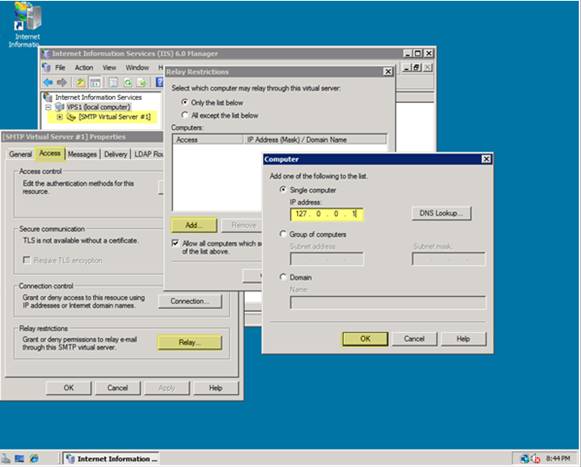
Figure 2: Enable Relay for localhost
6. Click OK to accept the information.
7. Click the Relay button on the Access tab, and set up the relay options for the server. Ensure that localhost and the IP address 127.0.0.1 are granted permission to relay mail.
8. Click OK to accept the options, and then click Apply and OK to return to the main page of the IIS Manager.
9. Click Restart IIS.
Test E-Mail from PHP
Create a test script to see whether you can send e-mail using PHP. Copy the following text and save it as email_test.php at your server root.
<?phpif(mail(‘user@mydomain.com’,’test message’)){echo(‘ok’);
}
else{
Run the file at mydomain.com/email_test.php.
Subscribe to:
Posts (Atom)